
Learn how to activate a WhatsApp username, create a professional WhatsApp Business profile, add your business details and product catalogue, and apply for Meta Verified. Follow this step-by-step guide to understand username setup, verification requirements, subscription offers and common mistakes to avoid. Is this conversation helpful so far?
In today’s highly competitive digital landscape, WhatsApp Business is no longer just a messaging app; it has evolved into a complete virtual storefront for local businesses and brands alike. Modern customers often prefer sending a quick chat inquiry over making a direct phone call. In this scenario, having a professional "Custom Username" and a "Blue/Green Tick" (Meta Verified badge) on your WhatsApp profile instantly elevates your brand’s credibility and builds immense customer trust.
Many business owners assume that acquiring Meta verification is a tedious, difficult, and expensive procedure. However, by using the right strategy and leveraging a specific Meta One subscription method, you can instantly activate your custom username and fast-track your verification. This comprehensive guide breaks down every exact step you need to follow to set up your profile flawlessly.
Prerequisites: Preparation Before You Begin Before initiating this process, ensure you have the following ready:
- The latest updated version of the WhatsApp Business application installed on your smartphone.
- A valid, legally recognized business document (such as a GST Certificate, MSME Udyam Aadhar, or Shop & Establishment Act registration).
- An active Debit or Credit card enabled for online transactions (required for a nominal ₹2 mandate charge).
Step 1: 100% Professional WhatsApp Business Profile Setup
Before applying for Meta verification, the most crucial step is making your profile look completely authentic and genuine. Meta’s automated systems will cross-reference your profile details with your submitted legal documents. Therefore, complete this step with high precision:
- Business Name: Ensure your profile name matches exactly with what is printed on your official business documents (like GST or MSME). Even a slight mismatch can lead to instant rejection.
- Profile Picture (Logo): Upload a high-quality, clear logo of your brand. Avoid using random or generic images downloaded from the internet.
- Business Category & Description: Select the most accurate category for your industry. Write a clear, professional overview of your business in the description, outlining your products, services, and core mission. Use relevant keywords to make the profile look established.
- Business Hours (Shop Timings): Accurately update your store or office opening and closing times. If you provide 24/7 online support, make sure to mark that clearly.
- Location & Address: Enter your exact physical address and carefully drop the pin on the map. This is highly beneficial for establishing local trust.
- Contact Information: Add your official customer support Email ID alongside direct links to your active Facebook and Instagram pages. This helps Meta verify your broader online footprint.
- Product Catalog Setup: List at least 4 to 5 of your top products or services in the catalog. Include clear images, detailed descriptions, and pricing. A well-populated catalog is the hallmark of an active, legitimate business.
Step 2: Instant Username Activation via Meta One Free Trial
Once your profile looks fully professional, it is time to claim your custom username. To do this, we will utilize the initial promotional offer provided by Meta.
- Open your WhatsApp Business app and navigate to 'Settings' . Look for the 'Meta Verified' or 'Meta One' banner and click on it.
- You will be presented with subscription plans. Select the 1-Week Free Subscription (Trial) option, which is offered to new businesses to test the premium features.
- To start the trial, you will need to add your payment method. For bank verification (card mandate), a nominal charge of exactly ₹2 will be deducted , which is usually auto-refunded later.
- As soon as the payment mandate is successful, the system will prompt you to choose your desired custom username (e.g., @YourBusinessName).
- The biggest advantage here is that your selected WhatsApp Username will become instantly active . You can immediately start promoting this username on your business cards, website, and social media.
Step 3: Business Document Verification (The Blue Tick Process)
Now that your username is secured, the next phase is applying for the Meta Verified badge (the Blue/Green Tick), which signals to customers that your business is officially authenticated.
- Return to the Meta Verified dashboard and click on the 'Verify Business' or 'Submit Documents' button.
- Upload a crystal-clear, original photo of your legal documents (GST, MSME, etc.). Ensure that all four edges of the document are visible within the frame and that there is no glare or reflection obscuring the text.
- Fast Track Approval: If your WhatsApp business name, listed address, and uploaded documents match 100% perfectly, Meta’s AI system often approves it instantly. In this best-case scenario, you will receive your verified badge within 1 to 3 hours .
- Manual Review: If the system detects any minor discrepancies, the application will be routed for manual human review. There is no need to panic; this standard process takes about 4 to 5 days . As long as your documents are genuine, the verification will ultimately be successful.
Step 4: The Smart Subscription Cancellation Trick
This specific step is highly valuable for small business owners who do not wish to pay a recurring monthly premium for Meta Verified, but still want to retain their customized username permanently.
- Your free trial is valid for 7 days. Set a strict calendar reminder to cancel your subscription exactly 2 days before the trial ends (i.e., on the 5th day).
- Android users can cancel this by navigating to the 'Subscriptions' section in the Google Play Store, while iPhone users can do so via the 'Subscriptions' menu in their Apple ID settings.
- By canceling early, you ensure no money is deducted for the upcoming month. While Meta may remove the Blue Tick badge from your profile after cancellation, per current policies, your claimed custom username will remain permanently locked and active for your business account.
Step 5: Google Indexing and Long-Term SEO Benefits
The most significant long-term advantage of this entire process is the boost to your digital visibility and organic search reach (SEO).
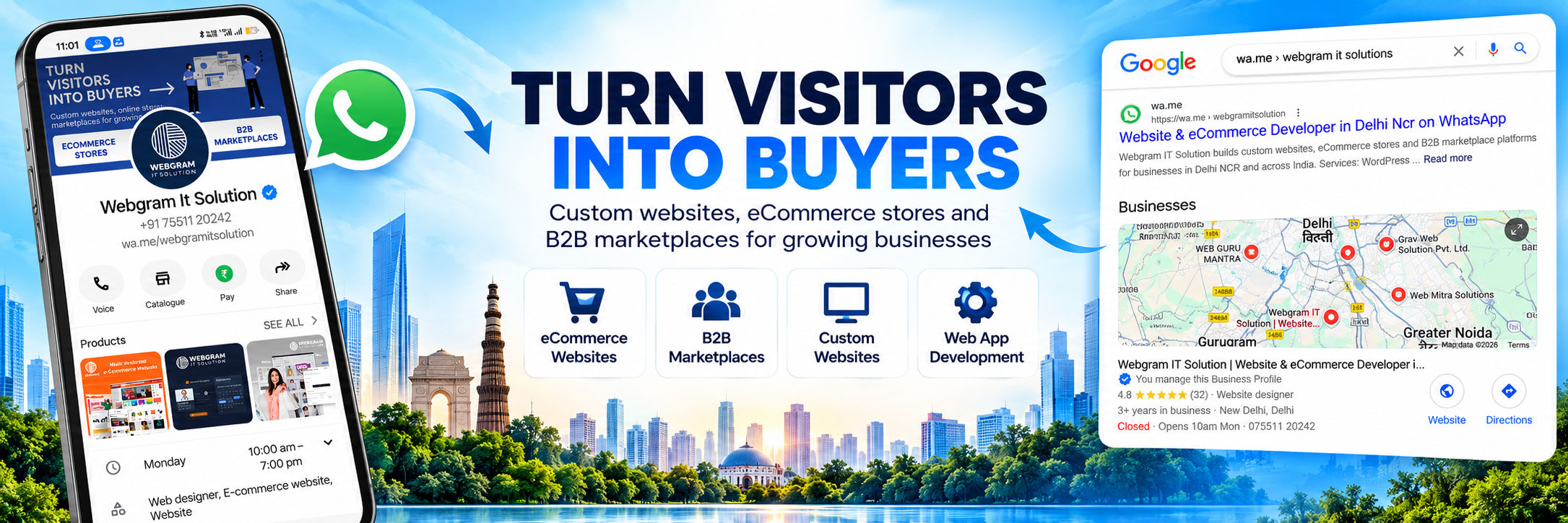
When you successfully claim a custom username, WhatsApp generates a direct, clean URL for your business (e.g., wa.me/YourUsername). Approximately 7 days after activation , Google’s web crawlers will automatically begin indexing this specific WhatsApp link in search engine results.
Going forward, whenever a potential customer searches for your brand name or related services on Google, your direct WhatsApp link can appear in the search results. The ultimate benefit here is friction-less communication: customers will not need to manually save your 10-digit mobile number in their phonebook. With a single click on the Google result, they will be instantly redirected to your WhatsApp chat window, drastically improving your lead generation and customer conversion rates.